
Get started#
Your first AI in five minutes. Blueprint only: no C++, no Behavior Tree.
- Add APS Core to your AI and give it a Perception Profile.
- React with one event: On AI Detect.
- Press Play. Tick Show Visualizer to see what your AI sees.
Five steps#
- 1
Install APS
In the Epic Games Launcher, open Library → Fab Library, find APS - Advanced Perception System and click Install to Engine. Then, in your project: Edit → Plugins, search
Advanced Perception, tick its box and restart the editor.
Edit → Plugins, search Advanced Perception, tick the box. Go deeperInstall it into one project instead
- Close the editor.
- Copy the
APSfolder intoYourProject/Plugins/APS/. TheAPS.upluginfile must sit directly in that folder. - Open
APS.upluginin a text editor and make sure it has the line"EnabledByDefault": false,(put it under"CanContainContent"if it's missing). - Reopen the project. On a Blueprint-only project, accept when the editor offers to build the module.
- Edit → Plugins → APS → Enabled, and restart.
Why step 3 matters: without it, the packager can't tell that a Blueprint-only project needs APS built into its game. Packaging then stops with "does not look like uproject file but no targets have been found!", or ships Unreal's prebuilt game, without APS, which logs "Plugin 'APS' failed to load". Installs from Fab already behave the right way.
- 2
Create a Perception Profile
In the Content Browser: right-click → Miscellaneous → Data Asset → type
Perceptionand pick PerceptionProfile → Select → name itDA_Profile_Guard.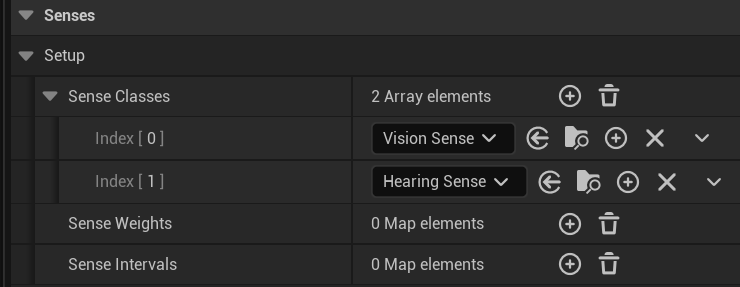
A new profile already sees and hears. You don't have to change anything yet. The profile is everything this AI perceives and how sharply. One profile per kind of AI: a guard, a dog, a camera.
Go deeperWhy it works before you change anything
A new profile already has Vision Sense and Hearing Sense in its
Sense Classes, and every other setting has a working default. An empty list would make the AI perceive nothing at all, which is the most common first-run mistake, so the two senses almost every game wants are already in. - 3
Add APS Core to your AI
Open your AI character Blueprint (a
CharacterorPawn, for exampleBP_Guard). No AI yet? In the Content Browser: right-click → Blueprint Class → Character → name itBP_Guard. In the Components panel, click Add and typeaps: every APS component is listed. Pick APS Core.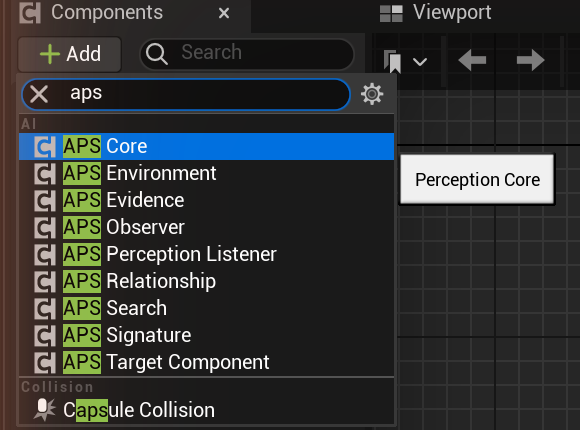
Add, then type aps: every APS component starts with APS. It appears in the Components list as PerceptionCore. Select it and, in its Details, set APS › Config › Profile to
DA_Profile_Guard. Tick APS › View › Show Visualizer to see what it sees while you play. Drawing it costs about 0.3 ms a frame per AI: fine for a few, but leave it off on a crowd (Performance).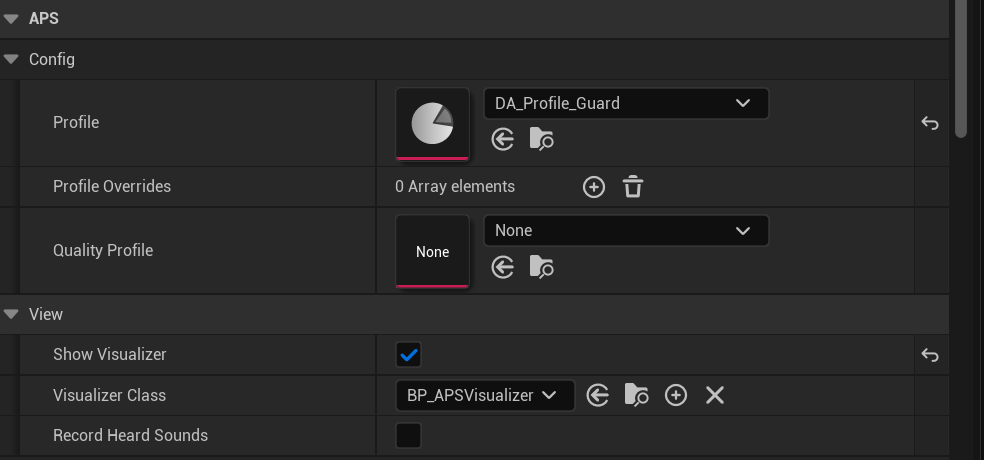
APS Core's Details: the Profile says what it perceives; Show Visualizer draws it in the game. - 4
React when it spots you
Select PerceptionCore (the APS Core), and at the bottom of its Details, under Events, click + next to On AI Detect. The event appears in the graph, already connected. Add a Print String to it, or an AI MoveTo to send the guard after you. Do the same for On AI Lost.
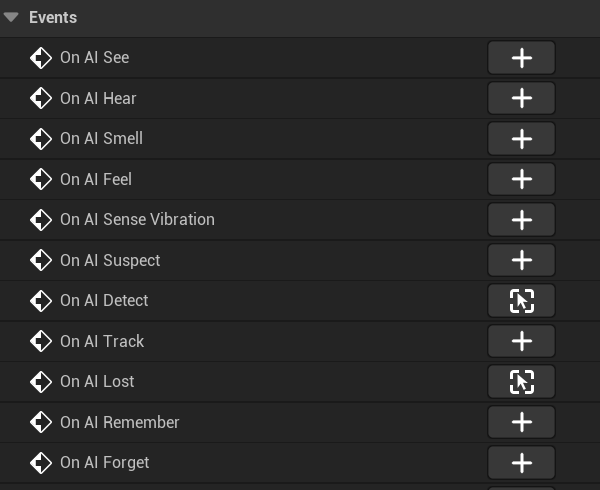
Every APS event is here. Once an event is in your graph, its + turns into a button that jumps to it. 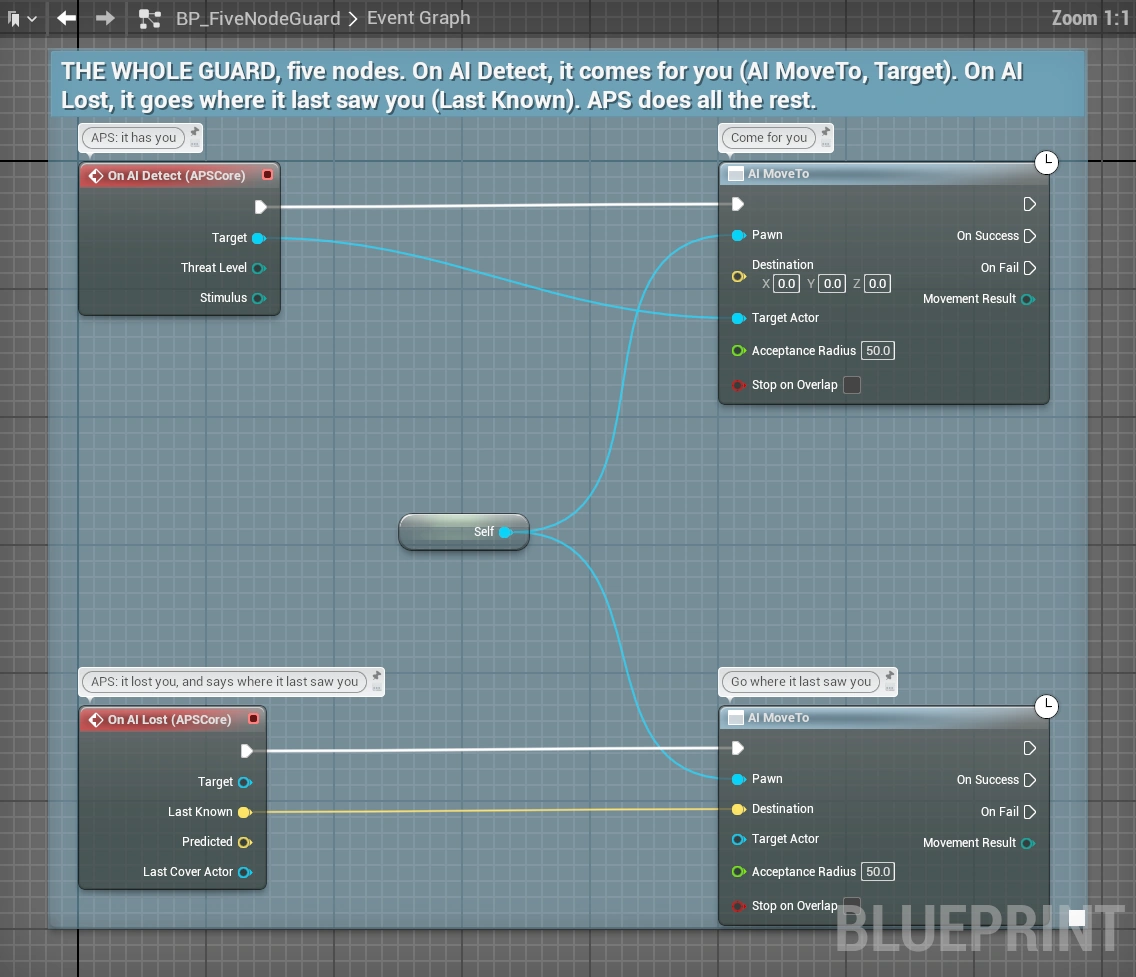
A complete guard: when it detects you it comes for you; when it loses you it goes where it last saw you. - 5
Press Play
Drop the guard in your level and walk into its view.
The guard's sight lines on you, its panel (top right) and the room's live screen: confidence climbs while it can see you. You will see:
- its view cone and lines to the points of you it can see,
- a panel in the top right corner: its state, a confidence graph and one row per sense,
- its state floating above you,
- your Print String once it is sure enough to detect you.
Step behind a wall and watch it go Detected → Lost, then fade to Remembered and Expired.
Play the demo#
The demo comes inside APS: a hub with one wing per feature, holding the rooms the feature pages point to.
- In the Content Browser, click Settings and tick Show Plugin Content. Installed from Fab? Tick Show Engine Content too: APS is then an engine plugin.
- Open Plugins › APS - Advanced Perception System › Demo › Maps. From Fab it is under Engine › Plugins; older engines add Content to the folder's name.
- Double-click L_MainMenu and press Play.
The demo is lit with Lumen, the default for a new Unreal 5 project. If its rooms look washed out, or the screen shows a red line about distance fields, open Project Settings → Rendering and set Dynamic Global Illumination Method and Reflection Method to Lumen and tick Generate Mesh Distance Fields (the editor asks to restart).
Go deeperPackage the demo
Your own game doesn't carry the demo: Unreal packages a plugin's levels only when your levels use them. To package the demo by itself, set Project Settings → Maps & Modes → Game Default Map to L_MainMenu and add all 11 levels in Demo › Maps to Project Settings → Packaging → List of maps to include in a packaged build. Without that list only the menu is packaged, and its doors lead nowhere.
Next steps#
Every feature, one page each
Start with Confidence: light, cover, stance and the vision cones.
OpenLet it hear you
APS hears only what your game says is audible: add Emit Sound to your footsteps.
OpenMake the player perceivable
Add APS Target Component to your player: five points on your skeleton, stance and camouflage.
OpenShare reactions between AI
Put your reactions in an APS Perception Listener and add it to every AI that should share them.
OpenGo deeperSetup checklist
On the AI
APS Coreadded, with itsProfileset (not None)- Your
APS Perception ListenerBlueprint added, if AI share their reactions APS Relationshipadded, if you use teams
On the player and other targets
APS Target Componentadded (recommended)- Actors that aren't Pawns call
Register Perceivable Actoron Begin Play
In the world
- Sound types made, and
Emit Soundcalled from footsteps and weapons Set Sun Directioncalled once, if you use light and shadow per targetSet Ambient Lightdriven by your day and night cycle, if you have one